

Lightsaber Bluetooth & App Control Guide
NovaSaber / Bluetooth & App Guide
Learn how to connect your compatible NovaSaber core to the ForcePark APP, control saber functions, manage blade effects, adjust parameters, and work with sound fonts and SD card settings.
Only S-RGB, SNV4, and SNV4 Pro lightsaber cores support Bluetooth connection. For S-RGB, refer to the SNV4 Pro APP guide. Please allow the APP to access required location permissions to ensure Bluetooth connectivity.
SN Pixel V4 Pro APP Operation Guide
Connect your SNV4 Pro core to ForcePark V2, control saber functions, manage sound fonts, edit blade effects, adjust parameters, and update SD card files.
Download SNV4 Pro GuideDownload and Install the APP
Android: Scan the QR code below to download the APP.

iOS: Search for “ForcePark V2” in the App Store and install it.
Bluetooth Connection
Turn on Bluetooth and Location Services on your phone, then open the APP.
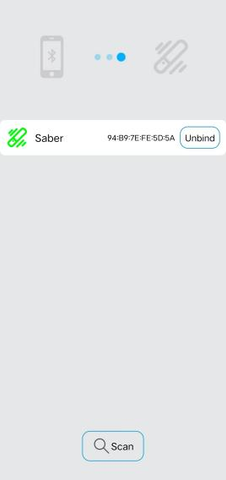
- Tap the Bluetooth icon in the toolbar.
- Tap the Scan button.
- Select the detected device named FORCEPARK.
- After successful connection, the saber will provide a voice prompt.


Control the Saber
Once connected, use the APP control interface to operate supported lightsaber functions.

Replace Sound Fonts
Read the SD card information before replacing or adding sound fonts.
Replacement Process
- The SD card can store a maximum of 99 sound font sets.
- The APP can mark a maximum of 25 sound font sets.
- Sound font folders numbered 1–25 do not need to be marked in the APP.
- Sound font folders numbered 26–99 need to be marked in the APP.
Simple Replacement
SNV4 Pro is compatible with Proffie sound fonts with very few exceptions. Rename the Proffie sound font folder with a numerical designation from 1 to 99.
The track file name must use the format:
Example:
Complex Replacement
- Sound font folder names should be numbered from 1 to 99.
- Supported naming examples include humxx.wav, blstxx.wav, clshxx.wav, forcexx.wav, stabxx.wav, and related sound files.
- “xx” may range from 01–09, 1–15, or may be left empty depending on the sound file structure.
- Sound files can be placed directly in the main folder or inside corresponding subfolders.
Blade Effects Editing
Local Blade Effects
- Tap an effect to preview the actual effect on the saber.
- Blade effects in “Local Blade Effects” can be marked with a star to designate them as available saber effects.
- If the number of starred effects exceeds the maximum limit, the system will display a warning.
- Effects uploaded from Public Blade Effects or My Blade Effects will be saved in Local Blade Effects.

Public Blade Effects
- Running blade effects can be viewed inside the APP.
- Public blade effects can be uploaded to Local Blade Effects.

My Blade Effects
- Register an account on saberopen.com.
- Log in to the APP using the registered account.
- Edited blade effects will automatically be saved to My Blade Effects.
- Select an effect from My Blade Effects and tap Upload to add it to Local Blade Effects.

Parameter Adjustment
Supported APP adjustments include:
- Volume Adjustment
- Power On / Off Speed Adjustment
- Blade Light Length Adjustment
- Color Palette
- Motion Sensitivity Adjustment

Other APP Settings
- Restore Settings
- APP Version Information Check
- Clash On / Off
- Motion Control On / Off
- Swing On / Off
- Hum On / Off

Add Blade Effects via Computer
- Create a folder named “filexx” under the “all-light” directory, where xx ranges from 1 to 90.
- Rename the downloaded blade effect file to “light1.bin”.
- Place the blade effect file and readme file inside the newly created “filexx” folder.
Upgrade the SD Card Program
Place the official upgrade file into the root directory of the SD card.
Insert the SD card and battery. When the metal impact sound is heard, the board upgrade is complete.

Important File Warnings
- “power on” and “set” are system files and must not be deleted or altered.
- Files named “file91” through “file99” inside the “all-light” folder are system blade-effect files and must not be deleted or altered.
- The system recognizes 44.1 kHz mono-channel WAV audio files. Other formats may cause abnormal playback or system errors.
SN Pixel V4 APP Operation Guide
Connect the SNV4 core through the ForcePark APP and manage supported Bluetooth controls, SD card settings, parameters, and sound effects.
Bluetooth Connection
Scan the QR code below to download and install the APP, or search for “ForcePark” in Google Play or the Apple App Store.

Connect the Saber
- Turn on Bluetooth on your phone and open the APP.
- Tap the Bluetooth icon.
- Tap the Scan button.
- Connect the lightsaber while it is in standby mode.


Install the blade before using the Bluetooth function.
Control & Adjust the Saber


SD Card Settings
Remove the SD card from the lightsaber and open it on your computer using an SD card reader.
2.1 Upgrade the Lightsaber Program
- Replace the existing OTA files on the SD card with the new OTA files.
- Insert the SD card back into the lightsaber. An update tone indicates that the upgrade has started.
- Wait for the upgrade completion tone before using the saber.
2.2 Customize Lightsaber Parameters
Open the “set” folder on the SD card and locate the configuration file.
Before editing, delete the config file from all folders except the “set” folder.
Main Edge Light Length
Sub Edge Light Length
Side Edge Delay Time
Speaker Volume
Impact Sensitivity
Twist Power On
Twist Power Off
Twist Sensitivity
Swing Power On
Swing Power-On Sensitivity

2.3 Custom Sound Effects
Make sure replacement or additional sound files use the required WAV naming structure.
- Shoot: blst (x).wav
- Hit: clsh (x).wav
- Drag: drag (x).wav
- Sound Font Switch: Sound font (x).wav
- Background Hum: hum (x).wav
- Power On: in (x).wav
- Lock: lock (x).wav
- Power Off: out (x).wav
- Swing: swingh (*).wav / swingl (*).wav
- Background Music: track (*).wav
Replace a Sound Pack
Rename the new sound pack to match the sound pack you want to replace, then replace the original sound pack.
Delete a Sound Pack
Delete the sound effects you want to remove directly from the SD card.
Add a Sound Pack
Place the new sound pack directly onto the SD card.
Technical Note
Before Editing Your SD Card
Back up the original SD card files before making changes. Core functions, file structures, APP controls, and available settings can vary by board version and firmware. Follow the instructions for your specific lightsaber core and avoid deleting required system files.